888 206 4377
 Email
888 206 4377
Email
Email
888 206 4377
Email


The delivery price is calculated during checkout based on your location and the goods ordered. Our basic delivery prices are:
Delivery within USA: $40.00
Delivery Service: Five working days*
* For products that are in stock and the order received by midday.
Some products go through a final configuration and calibration before being shipped. If the calibration labs are busy this can add up to two days on to the delivery schedule but guarantees a fresh calibration.
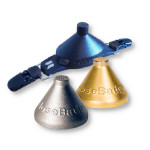
The Industrial version of the doseBadge is for measuring the noise dose or noise exposure of workers in line with the OSHA or NIOSH regulations.
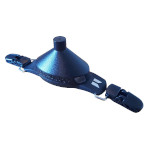
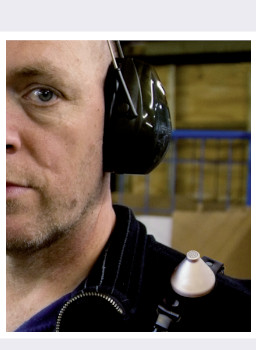
The doseBadge is mounted on a worker's shoulder in order to measure close to the ear, held in place by clips to the worker's clothing. It measures the sound levels throughout the work shift and provides the noise dose % and time weighted average (TWA) along with many more parameters. When downloaded to a computer it even provides a graph of the sound levels throughout the shift, so you can see when the noisy times were.
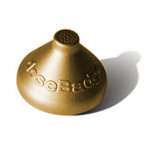
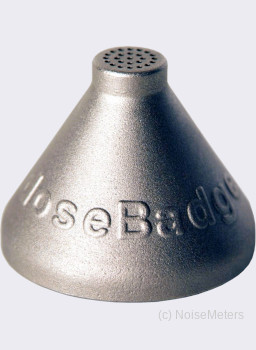
The doseBadge Industrial is enclosed in a cast alloy case, making it extremely strong but lightweight. Drop it and stand on it, but it will be fine.
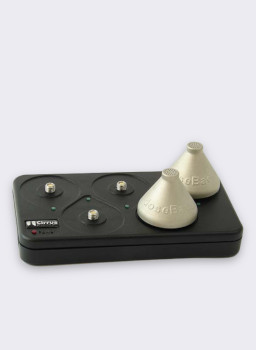
Protected within the alloy case is the microphone, acoustic processor and rechargeable battery. To reduce the risk of damage and tampering there are no controls or display on the doseBadge itself. Measurements are started and stopped using the doseBadge Reader, which is included in the kit.

The noise exposure rules for most industries in the U.S. are set by OSHA or NIOSH. The action levels for these two bodies are different, as are the noise parameters that should be measured. While we have noise dosimeters that can be set to meet multiple regulations, the doseBadge Industrial keeps things simple by working to either OSHA or NIOSH regulations.
'x' is the quantity of doseBadges in the kit.
It is important that you use a noise dosimeter that meets the standards, in the case of noise dosimeters this is ANSI S1.25, and that you use a Calibrator before and after every measurement to check the dosimeter's function. The doseBadge meets these requirements.
The doseBadge noise dosimeter is the part that mounts on the worker's shoulder. It is a small, lightweight device that should not interfere with the worker's duties.


The doseBadge is mounted on the worker's shoulder using two clips. Other mounting methods are available.

Weighing just 1.8oz, the doseBadge has no cables or controls, making it safer around machinery and limiting the effects of tampering.
The dosimeter should be fitted to the worker at the start of the day or working shift and left to measure the total noise exposure.
These are the most useful measurements made by the doseBadge Industrial:
The OSHA version of the doseBadge has two channels, one measuring with a threshold of 80 dB and the other with a threshold of 90 dB. This is needed for the two types of measurements needed for this particular set of regulations. The NIOSH version of the doseBadge has one channel set to meet the requirements of NIOSH and the other channel can be configured as required, in case you have other regulations to meet.

The doseBadge can be set to indicate when the noise dose has exceeded 100%. Under normal conditions, the blue LED flashes once every second. When the noise dose limit is exceeded, it flashes twice every second.
Leave the doseBadge measuring for the full working shift...
The measurements can be viewed on the Reader's built in graphic screen or they can be transferred to a computer for storage, analysis and reporting. The Reader can download a number of doseBadges before the measurements are transferred to a computer, so it is only necessary to carry the Reader on site.


The doseBadge kits include the NoiseTools software, which is used to download the measurements from the Reader and produce noise reports.
The NoiseTools software runs on a Windows PC, supporting versions 7, 8, 10 and 11. There are no license restrictions so it can be installed on as many computers as needed.
Although doseBadges and Readers can be bought individually, they are usually included in a complete noise measurement kit that includes everything you need to make occupational noise measurements.
The CK112/x and CK110/x kits include:
| doseBadges | Standard kits include 1, 2, 3, 5 or 10 doseBadge dosimeters, but other quantities can be supplied |
| Reader | One Reader unit is used with multiple doseBadges |
| Calibrator | Built in to the Reader unit |
| doseBadge Mounts | One mount for each doseBadge |
| Charger | For charging the doseBadge batteries |
| Software | The NoiseTools software |
| Certificates | Calibration certificates for each doseBadge and Reader (calibrator) |
| Carrying Case | Holds all doseBadges, Reader, charger and manuals |

Windshield The doseBadge windshield not only reduces the noise from strong wind but also provides additional protection against light rainfall, dust and the noise generated by knocks against the microphone.
)
Helmet Mount These allow the doseBadge to be fitted on the side of a helmet that is fitted with earmuff mounts. Three types of mounts are available to suit the most common helmets.

Keyfob Remote Control The Keyfob can be used instead of the Reader to Start and Stop the doseBadge. You still need a Reader to calibrate and reset the doseBadge but the Keyfob is much more handy for use in the field.
| Standards | ANSI S1.25:1991 Personal Noise Dosimeters Class Designation 2AS-90/80-5 |
| IEC 61252:1993 Personal Sound Exposure Meters | |
| Reader's Acoustic Calibrator to IEC 60942:2003 Class 2 | |
| Range | 70 dB(A) to 130 dB(A) RMS |
| 120 dB(C) to 140 dB(C) Peak | |
| Stored Functions | doseBadge Settings, Calibration Record |
| Measurement Duration, Highest Peak (C) Sound Level | |
| Overload Exceedance, Battery Status | |
| 115 dB(A) Maximum Sound Level Exceedance | |
| 1 Minute Time History of: Lavg (OSHA version), LAeq (NIOSH version), Peak Level, Battery Level | |
| Lavg or LAeq, TWA, % Dose, Estimated % Dose | |
| Weightings | "A" for all RMS measurements. |
| "C" for Peak Sound Pressure | |
| Configuration | (second channel on NIOSH model) |
| Exchange Rate (3dB, 4dB or 5dB) | |
| Criterion Level (80dB, 85dB, 87dB, 90dB) | |
| Criterion Time (8hrs, 12hrs, 16hrs, 18hrs) | |
| Threshold (None, 80dB, 85dB, 90dB) | |
| Time Weighting (None, Slow) |
| Memory | doseBadge: up to 24 hours of data in a single measurement |
| Reader: up to 999 individual doseBadge measurements | |
| Power | doseBadge: NiMH rechargeable battery |
| Reader: 2 x AA/LR6 | |
| CU:195A Power Adapter | |
| Outputs | doseBadge: Infrared to RC:110A Reader Unit |
| Reader: USB 2.0 to computer | |
| Dimensions | Mic. Apex Ø 0.5", Base Ø 1.8", Height 1.5" |
| Weight | doseBadge: 1.6oz |
| Reader: 14oz | |
| Temperature | 14°F to +122°F Operating |
| -4°F to 140°F Storage | |
| Humidity | Up to 95%RH Non-Condensing |
Review count: 1. Average rating: 5.0
★★★★★ 5 star rating
Verified NoiseMeters customer, Thu Nov 11 2021
Really good noise meters and associated software. The company offered great support getting us set up.
AMS Solutions
We only publish reviews provided by verified customers, who have purchased the product that is shown on this page. This ensures that the review is genuine and provided for the product listed. These reviews are for the doseBadge Industrial Noise Dosimeter.
Please note that these are all product reviews and so should give you an impression of the quality of the product and how well it carries out its intended functions.
If you would like to provide a review for the "doseBadge Industrial Noise Dosimeter" then please email us on info@noisemeters.com and we will send you the product review link.
 Cart
Cart)